Phòng ban
All employees in the Employees app fall under specific departments within a company.
Tạo mới phòng ban
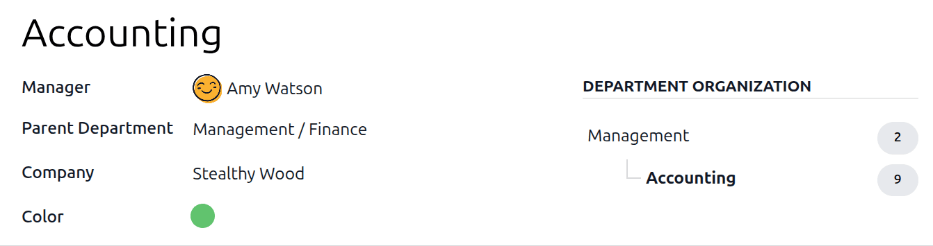
Để tạo một phòng ban mới, điều hướng tới , sau đó nhấp vào nút New ở góc trên‑trái để hiển thị mẫu phòng ban trống. Điền các thông tin sau vào mẫu phòng ban:
Department Name: Enter a name for the department.
Manager: Select the department manager using the drop-down menu.
Parent Department: If the new department is housed within another department (has a parent department), select the parent department using the drop-down menu.
Company: Select the company the department is part of using the drop-down menu. This field only appears in a multi-company database.
Color: Select a color for the department. Click the colored box to display all the color options. Click on a color to select it.
After the form is completed, click the (Save manually) icon to manually save the changes. When saved, a DEPARTMENT ORGANIZATION chart appears in the right of the department card, illustrating where the department lies in the organization, and how many employees are within each listed department.
Ghi chú
Mẫu sẽ tự động lưu khi nhập dữ liệu, tuy nhiên biểu đồ Department Organization không xuất hiện cho tới khi mẫu được lưu thủ công. Nếu mẫu không được lưu, biểu đồ Department Organization sẽ hiển thị khi mở thẻ phòng ban từ bảng điều khiển Departments.
Bảng điều khiển Phòng ban
Để xem các phòng ban đã được cấu hình hiện tại, điều hướng tới . Tất cả các phòng ban sẽ hiển thị ở dạng Kanban và được liệt kê theo thứ tự chữ cái.
Chế độ xem mặc định cho bảng điều khiển Departments là Kanban view. Có thể xem các phòng ban theo hai dạng khác: list view và hierarchy view.
Chế độ xem kanban
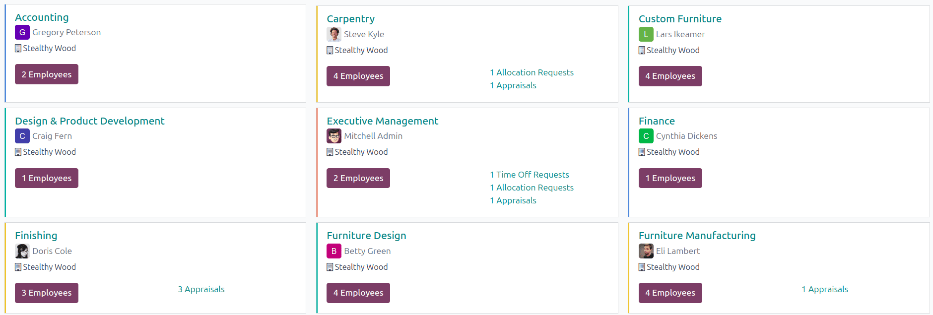
Mỗi phòng ban có thẻ Kanban riêng trên bảng điều khiển chính Departments. Mỗi thẻ phòng ban hiển thị các thông tin sau, nếu có:
Name: The name of the department.
Manager: The name and image of the department manager.
Company: The company the department is part of, including the location icon.
Employees: The number of employees within the department.
Appraisals: The number of appraisals scheduled for employees in the department.
Time Off Requests: The number of unapproved time off requests for employees in the department awaiting approval . This only appears if there are requests to approve.
Allocation Requests: The number of unapproved allocation requests for employees in the department awaiting approval. This only appears if there are requests to approve.
New Applicants: The number of new applicants for a position within the department. This only appears if there are new applicants.
Expenses: The number of employees in the department with open expenses to approve. This only appears if there are any expenses waiting for approval.
Absence: The number of employees with approved time off for the current day.
Thanh màu: màu đã chọn cho phòng ban sẽ hiển thị dưới dạng thanh dọc ở phía bên trái của thẻ phòng ban.
Ghi chú
Click on an alert in a department card, such as Time Off Requests, to reveal a list view of the requests to approve for that department.
Xem danh sách
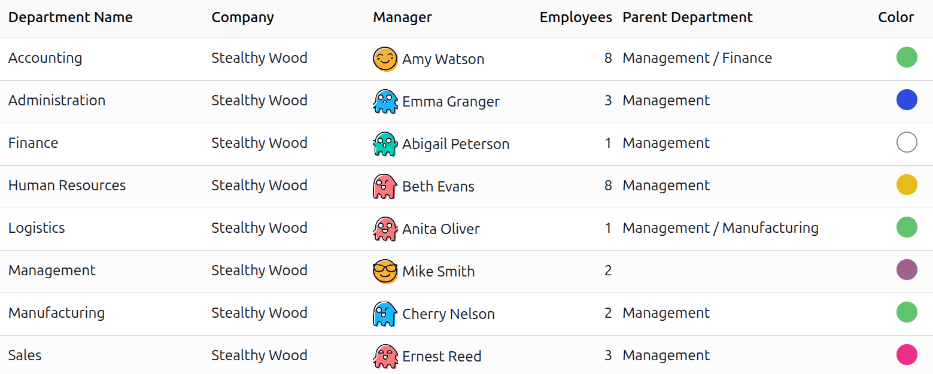
Để xem các phòng ban ở dạng danh sách, nhấp vào biểu tượng (danh sách) ở góc trên‑phải. Các phòng ban sẽ được hiển thị ở dạng danh sách, trong đó hiển thị Tên phòng ban, Công ty, Quản lý, Nhân viên, Phòng ban cha và Màu cho mỗi phòng ban.
Các phòng ban được sắp xếp theo thứ tự bảng chữ cái dựa trên Department Name, mặc định.
Cây phân cấp
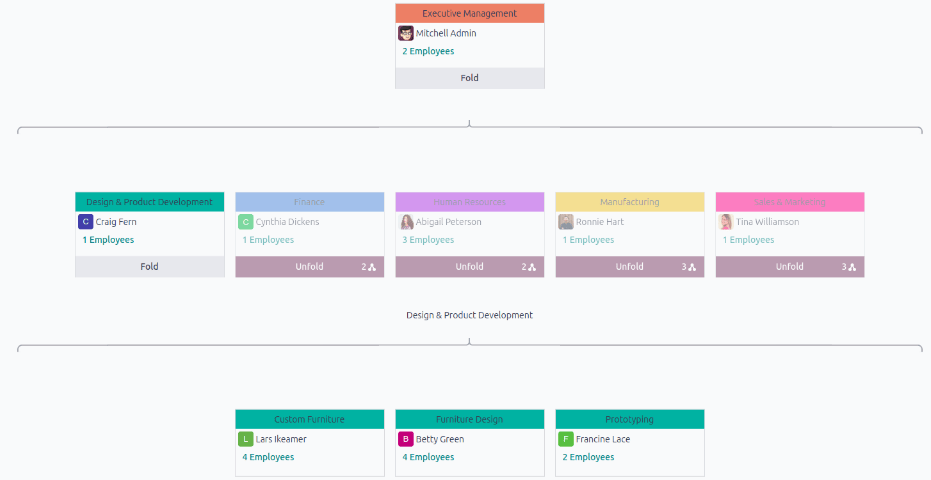
Để xem các phòng ban trong dạng cây, nhấp vào biểu tượng (Hierarchy) ở góc trên bên phải. Các phòng ban sẽ xuất hiện dưới dạng biểu đồ tổ chức, với phòng ban cấp cao nhất ở trên cùng (thường là Executive Management), và tất cả các phòng ban khác nằm bên dưới. Tất cả các phòng ban con của các phòng ban con cấp một đều được thu gọn.
Mỗi thẻ phòng ban hiển thị Department Name, Manager (và ảnh hồ sơ của họ), Number of Employees trong phòng ban, và số lượng các phòng ban con.
Nhấn nút Unfold trên thẻ phòng ban để mở rộng. Khi đã mở rộng, nút Unfold sẽ chuyển thành nút Fold. Để thu gọn phòng ban, nhấn nút Fold. Chỉ một phòng ban trên mỗi dòng có thể được mở rộng cùng lúc.
Nhấn vào bất kỳ vị trí nào trên thẻ phòng ban để mở biểu mẫu phòng ban. Nhấn vào nút thông minh (#) Nhân viên để xem danh sách tất cả nhân viên trong phòng ban đó.