Ki-ốt
Ứng dụng Attendances của Odoo cho phép nhân viên chấm vào và ra làm việc trực tiếp từ cơ sở dữ liệu hoặc một kiosk.
Kiosk là một dedicated device (máy PC, máy tính bảng hoặc điện thoại di động) để nhân viên sử dụng khi điểm danh vào và ra.
Kiosks are needed for employees who do not have access to the database.
Chỉ những nhân viên có quyền truy cập vào cơ sở dữ liệu Odoo mới có thể điểm danh vào và ra từ ứng dụng Attendances, và họ được gọi là users.
Quan trọng
Nếu nhân viên check in and out sử dụng thẻ hoặc RFID, thì một accessible device trong Kiosk Mode phải có sẵn để sử dụng hai phương pháp này.
Cấu hình
To use kiosks in the Attendances application, navigate to , and configure the Modes section and the Phần Cài đặt Kiosk.
Once all desired settings have been configured, click the Save button on the Settings page to activate and enable them.
Phần chế độ
Determine how an employee checks in at a kiosk, either by searching for their name (Manual Selection), scanning an employee ID or key fob (Barcode/RFID), or both.
Trên trang cài đặt, sử dụng menu thả xuống cho trường Kiosk Mode trong phần Modes, thực hiện lựa chọn mong muốn. Các tùy chọn là Barcode/RFID, Barcode/RFID and Manual Selection hoặc Manual Selection.
Ghi chú
Ứng dụng Barcode không cần được cài đặt để sử dụng một trong các cài đặt Barcode/RFID.
Phần Cài đặt Kiosk
Các cài đặt khác nhau trong phần Cài đặt Ki-ốt xác định cách nhân viên điểm danh vào và ra bằng ki-ốt.
Barcode Source : This setting appears only if one of the two Barcode/RFID selections were configured for the Kiosk Mode setting.
If available, select how barcodes are scanned at the kiosk from the drop-down menu. Barcodes can be scanned with a dedicated Scanner, or with a device's Front Camera or Back Camera.
Display Time : Determine how many seconds a check-in/check-out confirmation message remains on the kiosk screen before returning to the main check-in screen.
Employee PIN Identification: Click this checkbox to require employees to use a unique PIN to check in. PINs are configured on each individual employee record. Refer to the new employee documentation for more information on setting up PINs.
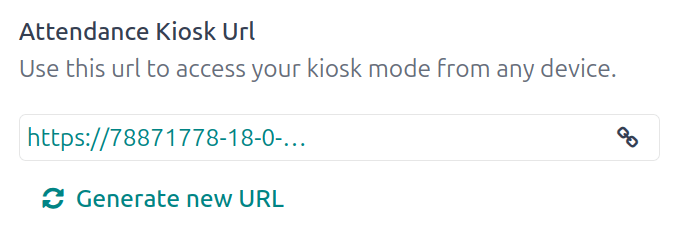
URL Ki-ốt Điểm danh: Odoo tạo một địa chỉ web duy nhất (URL) để sử dụng thiết bị như một ki-ốt, mà không cần đăng nhập vào cơ sở dữ liệu Odoo. Khi thiết lập thiết bị ki-ốt, hãy truy cập địa chỉ web duy nhất này bằng trình duyệt web để hiển thị ki-ốt ứng dụng Attendances.
Quan trọng
These kiosk URLs are not secured with any type of access code. Anyone who has the URL can access the Attendances app kiosk. If the URL is compromised for any reason, such as in the event of a security breach, click Generate new URL, located beneath the link, to generate a new URL and update the kiosk accordingly.
Chế độ ki-ốt
Việc vào Kiosk Mode chỉ khả dụng cho người dùng có access rights cụ thể.
Kiosk Mode có thể được kích hoạt theo hai cách khác nhau:
Đi tới , và nhấn Kiosk Mode trên thanh menu trên cùng. Thiết bị sau đó sẽ đăng xuất khỏi Odoo và chuyển sang Kiosk Mode.
Đi tới . Trong phần Kiosk Settings, sử dụng liên kết trong trường Attendance Kiosk Url để mở Kiosk Mode trên bất kỳ thiết bị nào.
Quan trọng
Như một biện pháp bảo mật, một khi thiết bị ở chế độ Kiosk Mode, sẽ không thể quay lại cơ sở dữ liệu mà không đăng nhập lại.
Ghi chú
Bất kỳ lúc nào, nếu cần, có thể tạo một URL kiosk mới. Nhấp vào Generate a new Kiosk Mode URL
The kiosk loads, displaying the current date and time, along with the following banner at the top: Connect an RFID reader, and scan a token. 'Read the Documentation'/ 'Buy an RFID Device.
Click the text link Read the Documentation to open the corresponding documentation in a new tab. Click the text link Buy an RFID Device to open a new tab with available products to purchase on Amazon. Close either tab to return to the kiosk.
At the end of the text, an X appears. Click the X to close the banner. Closing the banner hides it from that point on, and cannot be enabled again.
Để thoát Kiosk Mode, hãy đóng tab trong trình duyệt web hoặc quay lại màn hình đăng nhập chính của Odoo.
Vào ca và ra ca với kiosk
Huy hiệu
Để vào ca hoặc ra ca bằng thẻ, chạm vào hình ảnh Quét thẻ của bạn ở trung tâm của kiosk.
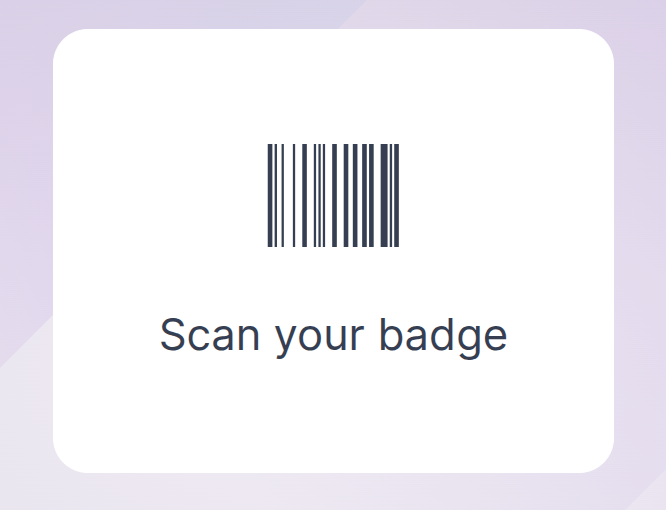
Sau đó, quét mã vạch trên thẻ bằng phương pháp được cấu hình trong phần Kiosk Settings của menu cấu hình.
Sau khi mã vạch được quét, nhân viên sẽ được chấm vào hoặc chấm ra, và một confirmation message xuất hiện với toàn bộ thông tin.
RFID
Để chấm công vào hoặc ra bằng thẻ RFID, quét thẻ bằng máy đọc RFID.
Sau khi quét, nhân viên sẽ được check‑in hoặc check‑out, và một thông báo xác nhận xuất hiện với tất cả thông tin.
Thủ công
Users who do not have a scannable badge or an RFID fob can manually check in and out at a kiosk.
Tap the Identify Manually button on the kiosk, and a screen appears with all the employees who can be checked in or out. Tap on a person to check them in or out, and a confirmation message appears.
Để tìm một người cụ thể, bạn có thể:
Search: Tap into the search bar and enter the desired person's name. As the name is typed, matching results are displayed on the screen.
By department: Tap on any desired selection in the department section, located on the left side of the screen, to only view employees from that specific department. The number at the end of each listed department represents how many employees that department has.
MÃ SỐ
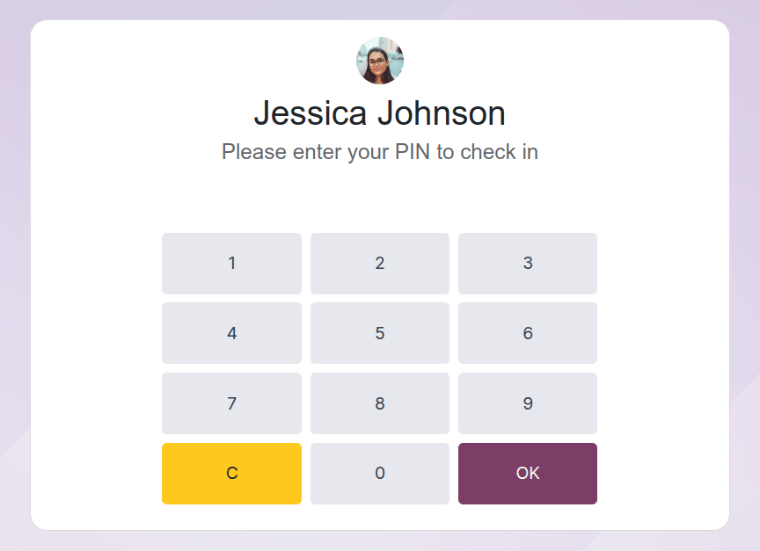
Nếu ô kiểm Employee PIN Identification được chọn trong phần Kiosk Settings của menu cấu hình, nhân viên sẽ được yêu cầu nhập PIN khi tự mình check‑in hoặc check‑out.
Sau khi nhân viên được chọn, một bàn phím số xuất hiện cùng thông báo. Khi chấm công vào, (Employee) Vui lòng nhập PIN của bạn để chấm công vào xuất hiện phía trên các số. Khi chấm công ra, (Employee) Vui lòng nhập PIN của bạn để chấm công ra xuất hiện phía trên các số.
Nhấn PIN bằng bàn số, sau đó nhấn OK khi xong. Nhân viên sau đó sẽ chấm công vào hoặc ra, và một confirmation message sẽ xuất hiện.
Thông báo xác nhận
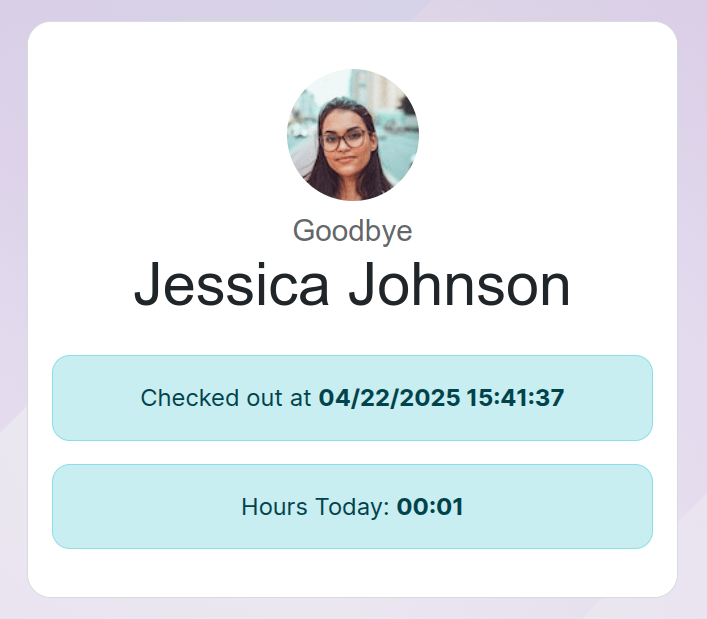
When an employee checks in or out, a confirmation message appears, with all the check-in or check-out information.
Khi điểm danh vào, thông báo Welcome (Employee) xuất hiện, cùng với ngày và giờ hiện tại. Nếu nhân viên đã điểm danh vào và ra trong ngày, thông báo Hours Previously Today: HH:MM cũng xuất hiện, hiển thị tổng số giờ đã ghi trước đó.
When checking out, Goodbye (Employee) appears, as well as the date and time of checkout. Beneath the message is an Hours Today: HH:MM field, with the total hours and minutes logged for the day.
Dưới cả các tin nhắn "welcome" và "goodbye" có một nút OK. Để thoát màn hình trước thời gian đã cài đặt trong kiosk, chạm vào nút OK.